Installation Manual
Complete guide to install and configure your CarAlgo Dongle with ease
Prerequisites
- Vehicle equipped with an OBD-II port
- Battery in good condition
- Engine off when connecting the Dongle
- CarAlgo application
- Bluetooth enabled
- Stable internet connection
Installation steps
Locate the OBD-II port
The OBD-II port is usually located under the dashboard, on the driver's side. It may be hidden by a cover or cap.
Check the location guide on our website to find the exact port location for your vehicle.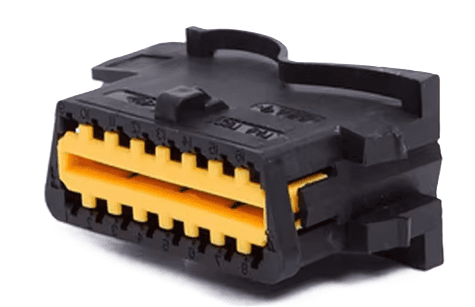
Connect the CarAlgo Dongle
Gently insert the CarAlgo Dongle into the OBD-II port. Make sure it's firmly inserted and doesn't move.
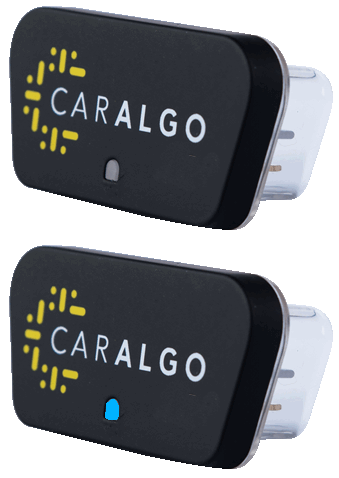
Indicator : Turn on the ignition and check that the blue LED blinks to confirm a successful connection.
- • If the blue LED blinks: the Dongle is not connected to the smartphone
- • If the blue LED is continuously on: the Dongle is connected to the smartphone
App installation and account creation
App installation
iOS (iPhone/iPad)
- 1. Click the App Store button above to download the app
- 2. Or open the App Store and search for "CarAlgo"
- 3. Tap "Get" then "Install"
- 4. Authenticate with Face ID, Touch ID or your password
Android
- 1. Click the Google Play button above to download the app
- 2. Or open Google Play Store and search for "CarAlgo"
- 3. Tap "Install"
- 4. Sign in to your Google account if necessary
Account creation
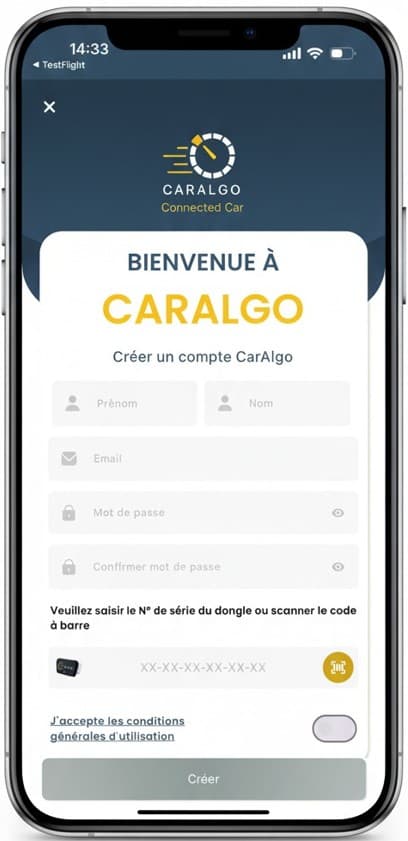
Create your account by following these steps:
- 1. Open the CarAlgo app, then tap "Create account"
- 2. Fill in your personal information (first and last name, valid email, secure password with 8 characters minimum)
- 3. Enter the Dongle serial number, printed on its nameplate (you can also scan the barcode)
- 4. Read and accept the Terms of Use
Log in to your account
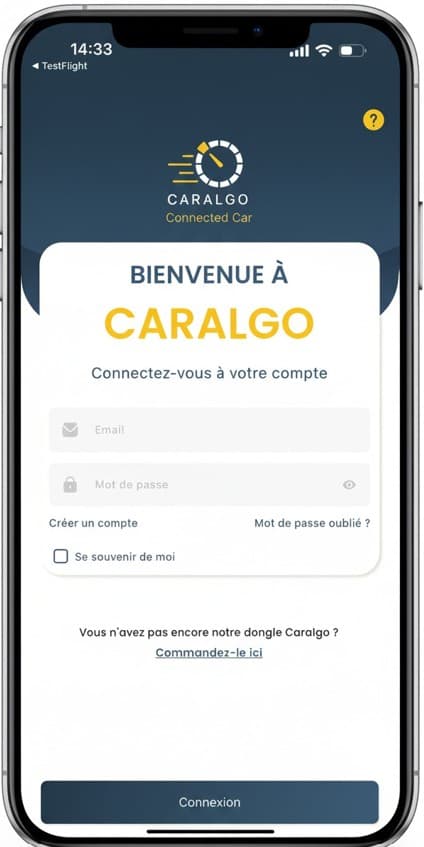
- 1. Enter your email address and password
- 2. Check "Remember me" to make future logins easier
- 3. Sign in
Initial setup and permissions
The app will request several permissions necessary for it to work properly:
Enable Bluetooth in your smartphone's settings.
1. Location access while the app is active
Needed to locate the vehicle's position. You can disable it at any time using private mode.
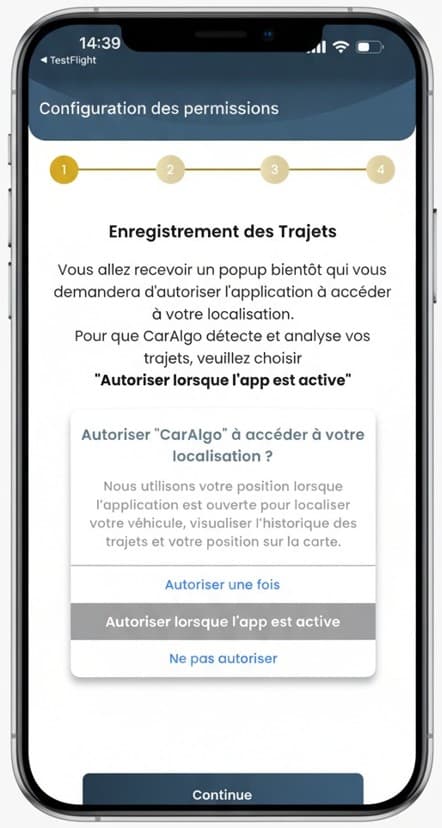
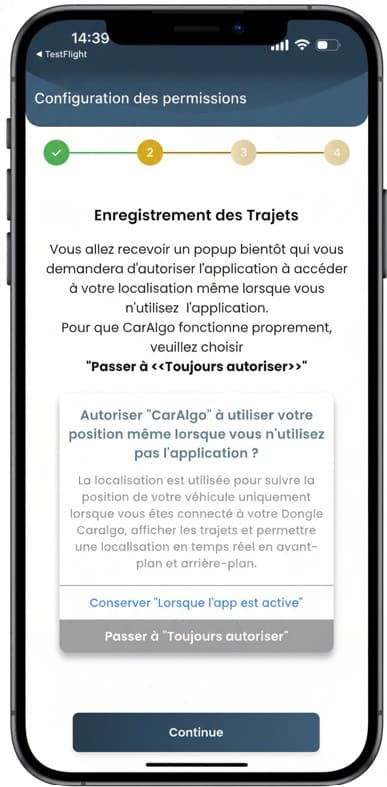
2. Location access while the app is inactive
Lets the vehicle be located even when the app isn't active. If private mode is enabled, the app cannot access location.
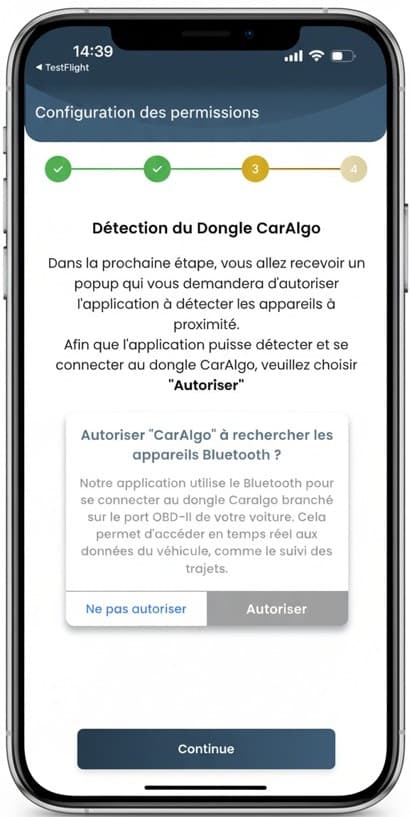
3. Search for Bluetooth devices
The app uses Bluetooth to connect to the Dongle and collect vehicle data.
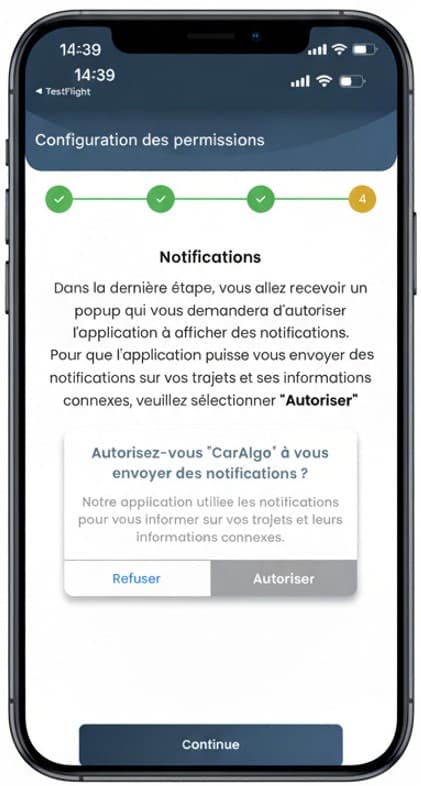
4. Push notifications for driving alerts
Needed to receive notifications about events related to your vehicle.
Events notified by CarAlgo
• Fuel refill detection
• Vehicle shock detection while parked
• Engine fault detection
• Low battery alert
• Battery replacement alert
• Technical inspection alert
• Maintenance due alert
• Fuel overconsumption detection
Add your vehicle
Dongle-Vehicle-Account link
Once logged into your account, click "Add Vehicle".
1. In the app, click "Add a vehicle"
Open the app and navigate to the vehicle-addition section.
2. Check that the Dongle LED is blinking
Before clicking "Continue", check that the Dongle LED is blinking blue.
3. Start the vehicle's engine
Start the engine so the Dongle can connect and read the vehicle's data.
4. Press "Continue"
This starts the automatic configuration of your vehicle.
5. Smartphone-Dongle-Vehicle connection
The system automatically performs the connections:
- • Searching for the Dongle
- • Connecting to the Dongle, blue LED continuously on
- • Reading and verifying the Dongle's serial number
- • Verifying CAN communication
- • Connecting the Dongle to the vehicle
6. The vehicle is added automatically
- • Press "Start" to begin collecting vehicle data
- • Automatic reading of the vehicle identification number (VIN)
- • Display of the detected VIN (17 characters)
- • Vehicle lookup in the national vehicle database
- • Automatic retrieval of the registration document and vehicle identification
- • Retrieval of the configuration file (Dataset) and injection into the Dongle
- • Reading and display of battery voltage and usage data
7. Configuration successful
Go to the home page to view your vehicle's dashboard.
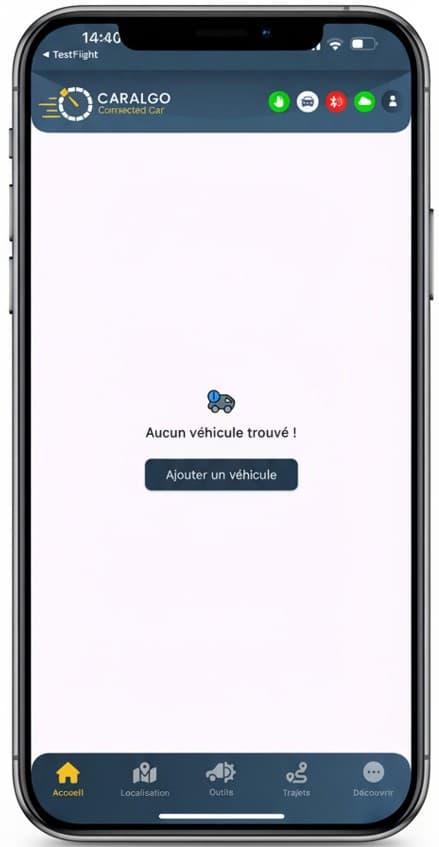
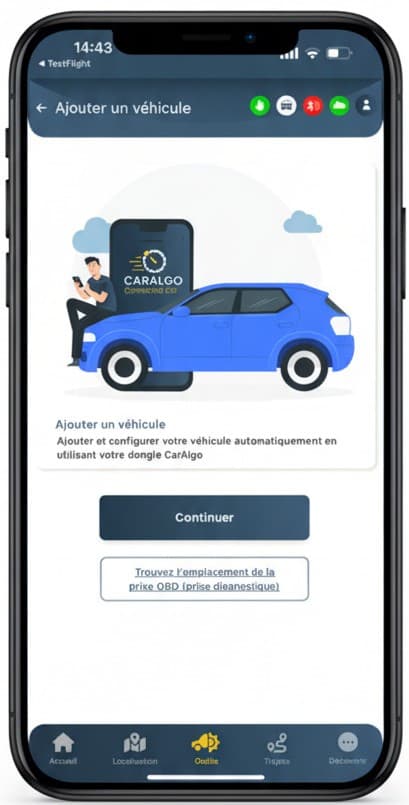
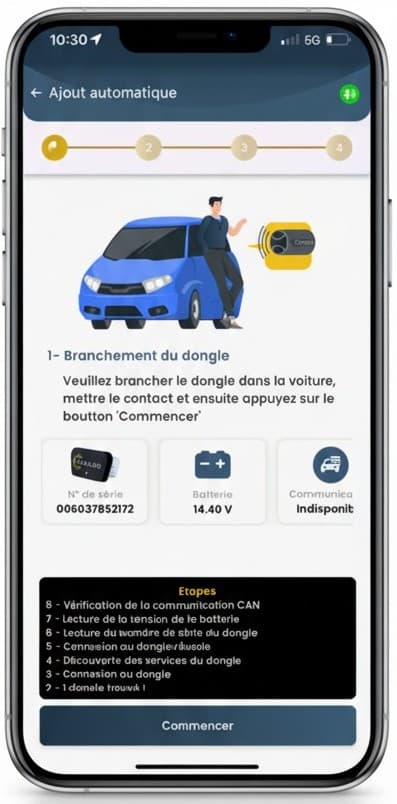
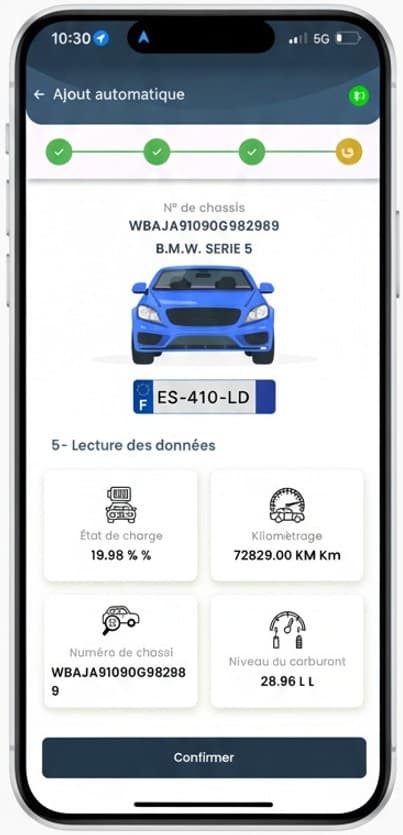
Success: Your vehicle is now linked to your account and starts collecting data.
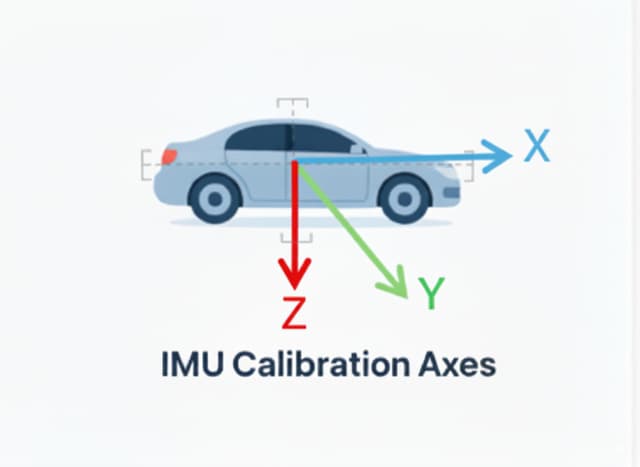
First calibration trip
The first trip of at least 10-15 minutes will let the system automatically calibrate the sensors.
Troubleshooting
Common problems
Your first account access is denied
Check your login details, especially that you entered the correct Dongle serial number (printed on the nameplate and included in the email you received at purchase).
The blue LED doesn't light up
Check that the Dongle is properly inserted into the OBD port.
No Bluetooth connection
Check in your smartphone's settings that Bluetooth is enabled.
My vehicle isn't identified
Check that the engine is running and try again. If the problem persists, contact CarAlgo support.
Technical support
If you run into difficulties, our technical team is here to help.
Email : support@caralgo.com
Before contacting support
Check the FAQ first — you might already find your answer there.
View the FAQ